










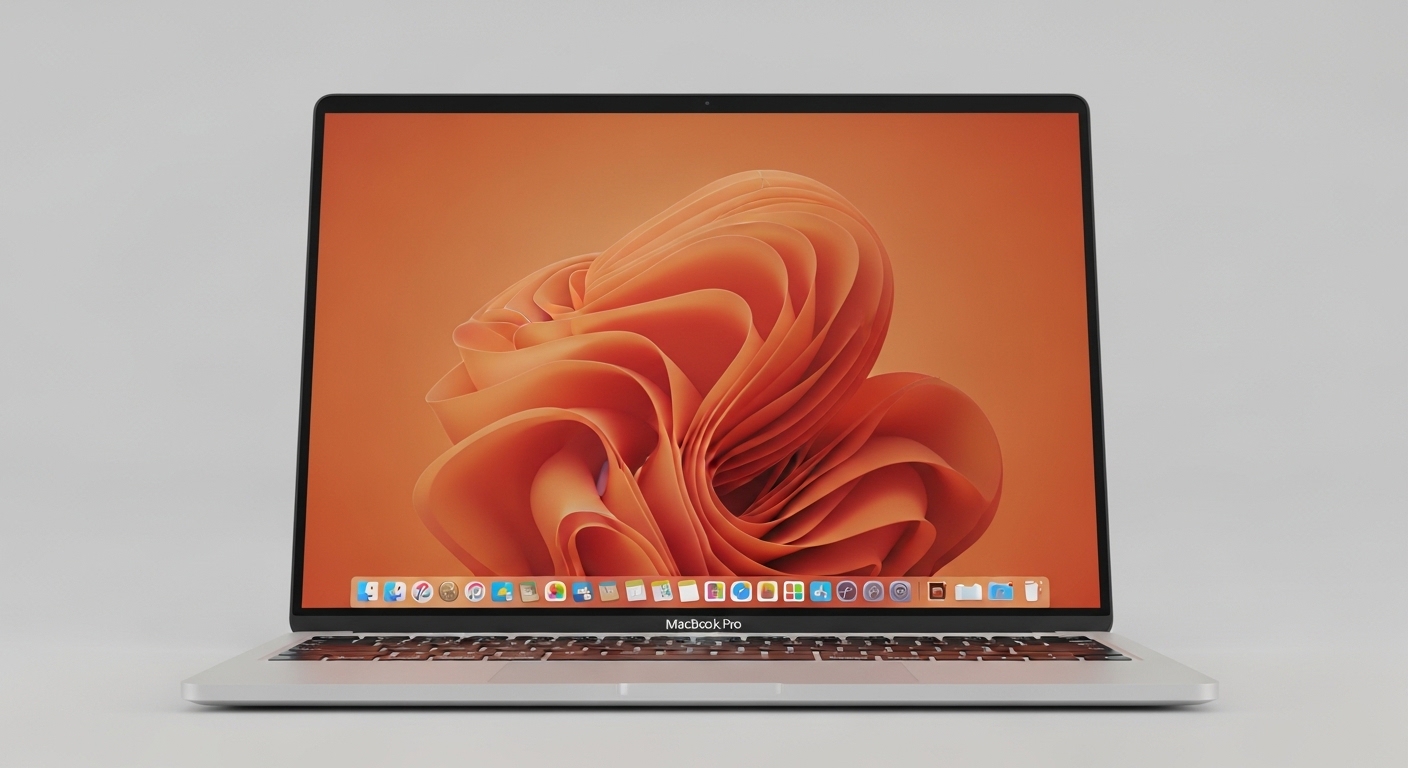
Experiencing a MacBook Pro orange screen can be alarming for any user. This unusual display issue can interrupt workflow, cause data loss, and create anxiety about hardware failure. While it is not a common problem, understanding the reasons behind a MacBook Pro orange screen is essential for troubleshooting effectively. This article explores the possible causes, diagnostic steps, and practical solutions to address the issue. Additionally, it provides preventive measures to avoid recurrence, ensuring your MacBook Pro remains functional and reliable. Knowledge and prompt action can help users resolve the orange screen efficiently and safely.
Understanding the MacBook Pro Orange Screen
A MacBook Pro orange screen is typically a visual indication of a software or hardware malfunction. Unlike standard display problems like flickering or black screens, an orange tint often signals issues with the graphics card, display settings, or system firmware. In some cases, the operating system may fail to initialize properly, causing unusual colors during startup. Recognizing the orange screen as a warning allows users to investigate further instead of ignoring the problem. Understanding the potential origins of the issue is the first step toward resolving it and preventing further damage to the device or its internal components.
Common Software-Related Causes
Software conflicts are a frequent source of a MacBook Pro orange screen. Corrupted system files, incompatible macOS updates, or faulty applications can interfere with the graphics output. In particular, third-party apps that modify display settings or install custom drivers may trigger abnormal screen colors. Sometimes, a recent software installation or update can cause display errors that manifest as an orange tint. Running diagnostic tools, resetting the system management controller, or reinstalling macOS can often address software-related causes. Identifying whether the issue stems from software helps narrow down solutions and avoids unnecessary hardware interventions.
Hardware-Related Causes
Hardware issues can also result in a MacBook Pro orange screen. Problems with the GPU, display cable, or internal connectors may affect the signal transmitted to the screen, producing unusual color shifts. Overheating or physical damage from drops can exacerbate the problem. Older MacBook Pro models may develop graphics card failures over time, causing persistent display issues. Professional hardware diagnostics are recommended if the orange screen persists despite software troubleshooting. Understanding the hardware components involved helps users determine whether a repair, replacement, or professional service is necessary to restore the device to full functionality.
Safe Diagnostic Steps
Diagnosing a MacBook Pro orange screen should start with safe, non-invasive steps. Restarting the device in safe mode allows macOS to load with minimal drivers and may reveal whether third-party software is responsible. Resetting the NVRAM or PRAM can correct display settings that contribute to color distortion. Running built-in Apple diagnostics tests the hardware for underlying failures. Observing whether the issue appears only during startup, login, or normal operation can further help pinpoint the cause. Following structured diagnostic steps ensures that users do not inadvertently worsen the problem while seeking solutions for the orange screen.
Reinstalling macOS
Reinstalling macOS is an effective solution when software issues are suspected. A clean installation removes corrupted system files and ensures compatibility with the latest updates. Before proceeding, backing up important data is essential to prevent loss. macOS reinstallations can be performed using recovery mode, allowing users to refresh the operating system without impacting personal files if desired. After the installation, testing the display helps determine whether the orange screen has been resolved. This approach is particularly helpful when the issue appears after a recent update or system corruption, addressing software-related causes thoroughly.
External Displays and Connections
Testing the MacBook Pro with an external display can help distinguish between screen and internal graphics issues. If the orange screen does not appear on the external monitor, the problem likely lies within the laptop display or its connections. Loose or damaged cables, backlight issues, or panel defects may require professional repair. Conversely, if the orange screen persists on the external display, the graphics card or motherboard may be involved. Using external testing is a safe diagnostic method that provides clarity on the origin of the problem, guiding users toward the appropriate repair or replacement solution.
Professional Repair Options
When the orange screen persists despite basic troubleshooting, professional repair is often the best course of action. Authorized Apple service centers can perform detailed diagnostics and replace defective hardware if needed. Repairs may include replacing the GPU, display assembly, or internal connectors depending on the root cause. Choosing certified professionals ensures that replacement parts are genuine and compatible, reducing the risk of recurring issues. While professional repair may involve cost and downtime, it is the most reliable way to address severe or persistent MacBook Pro orange screen problems safely.
Preventive Measures
Preventing a MacBook Pro orange screen involves proactive maintenance and careful usage. Regularly updating macOS and applications reduces the risk of software conflicts. Avoiding heavy workloads on older devices and monitoring temperature prevents overheating that can damage internal components. Physical protection against drops or pressure minimizes display damage. Performing periodic system checks and backing up data ensures that potential issues are detected early. Adopting preventive practices preserves both the performance and longevity of the MacBook Pro while reducing the likelihood of encountering display problems such as the orange screen in the future.
Monitoring System Health
Monitoring system health helps identify problems before they escalate. Tools that track GPU performance, temperature, and memory usage can alert users to potential issues contributing to display anomalies. Regularly reviewing system logs and error reports can reveal patterns associated with software conflicts or hardware degradation. Maintaining a clean and optimized macOS environment also reduces strain on internal components. By actively monitoring system health, users can take timely action to prevent recurring MacBook Pro orange screen incidents and ensure reliable performance for both work and entertainment purposes.
Conclusion
A MacBook Pro orange screen can stem from both software and hardware issues. Addressing the problem requires careful diagnosis, from safe troubleshooting steps to potential macOS reinstallation and professional repair. Understanding the causes, testing with external displays, and monitoring system health are essential strategies for resolving the issue. Preventive measures such as regular updates, temperature management, and physical protection can reduce the likelihood of recurrence. By following these approaches, MacBook Pro users can restore their device functionality and maintain a reliable computing experience while minimizing disruption caused by display problems.